Source workflow verified: August 29, 2026
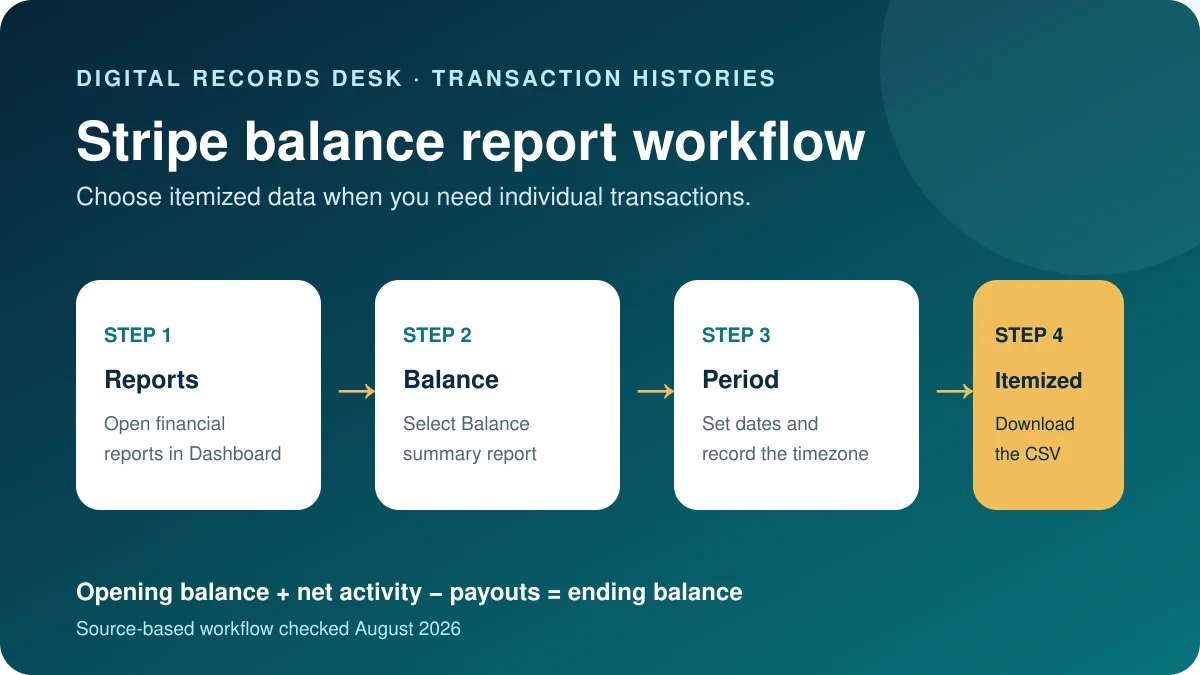
Stripe’s Balance summary report works like a bank-account reconciliation report and can provide an itemized CSV of complete balance transaction history. Choose itemized data when you need individual charges, refunds, disputes, fees, adjustments, and payouts.
Choose the correct Stripe report
| Report | Use | Choose when |
|---|---|---|
| Balance summary | Starting balance, activity, payouts and ending balance | Reconciling Stripe as an account |
| Balance change from activity | Charges, refunds, disputes, fees and adjustments | Reviewing balance movements |
| Payout reconciliation | Transactions settled in each automatic payout | Matching deposits to bank statements |
| Summary CSV | Totals shown in Dashboard | High-level reporting |
| Itemized CSV | Individual underlying transactions | Accounting detail or imports |
How to download Stripe transaction history
- Sign in to Stripe Dashboard and open Reports.
- Select Balance summary.
- Set the complete date range.
- In Balance change from activity, choose Download.
- Select Itemized and optional custom metadata.
- Download Payouts separately if payout-level records are needed.
- Keep the original CSV unchanged.
Dates, availability and time zones
Stripe Dashboard financial reports cover complete days. Stripe computes daily data after the activity day ends, so very recent activity may not appear immediately. Confirm the report time zone; API reporting can default to UTC when no supported timezone is supplied. For a period boundary, record the selected timezone and compare sample timestamps.
When a month-end report appears short, wait until Stripe has completed the following day’s calculation and regenerate the same period before changing filters. Compare both the created date and available-on date: a charge can be created in one period while its funds become available or enter a payout later.
How to reconcile the export
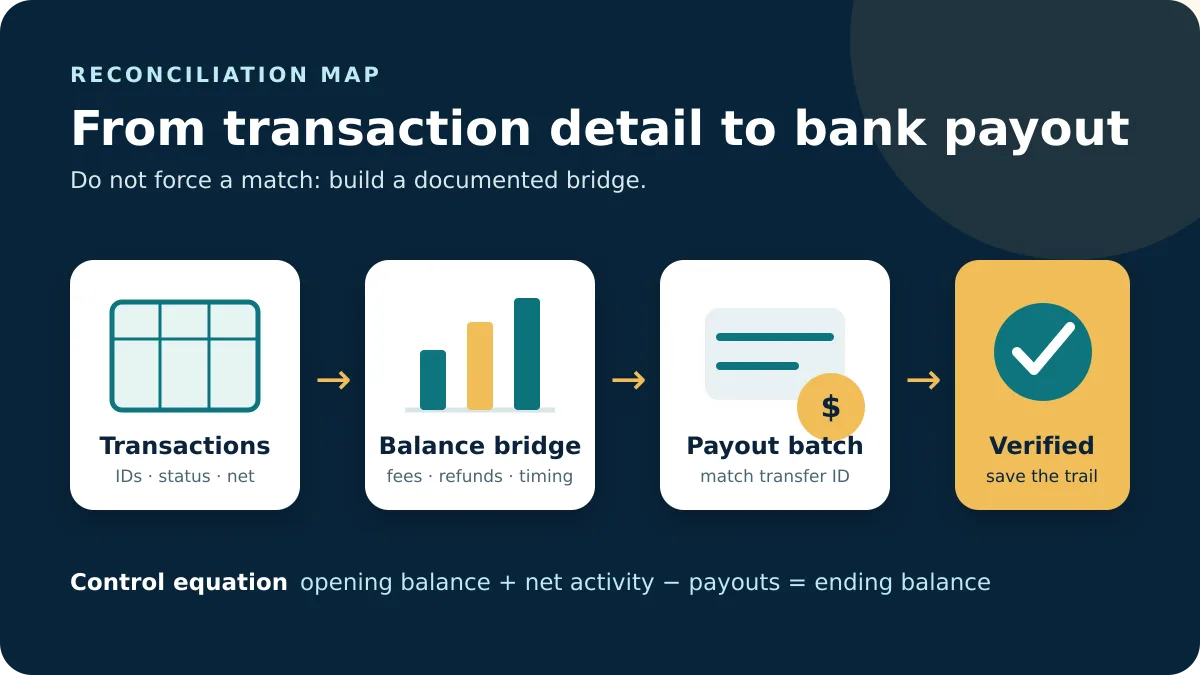
Start with opening balance, add net balance-changing activity, subtract payouts, and compare the ending balance. Review charges, refunds, disputes, adjustments and fees by reporting category. If automatic payouts are the accounting unit, use payout reconciliation rather than forcing bank deposits to match daily sales.
Connected accounts can receive reports through platform-provided embedded components with different visible controls. Confirm which Stripe account or platform generated the file.
Keep summary and itemized exports together with a note of date range, timezone, account and included metadata. That context makes it possible to reproduce totals later and prevents accidental comparison between test-mode, live-mode, platform and connected-account data.
Choose columns and preserve identifiers
Start with Stripe’s standard itemized fields and add custom metadata only when it answers a defined question, such as an internal order number. More columns can increase privacy risk and make an import harder to validate. Always preserve the balance transaction ID, source ID, reporting category, gross, fee, net, currency, created date, and available-on date when those fields are offered.
Import IDs as text and amounts with the correct decimal convention. Do not remove negative rows: refunds, disputes, fees, and adjustments are part of the balance movement. If accounting software needs a smaller schema, transform a working copy and keep a column map showing every source field and destination field.
Example balance and payout check
Assume an opening Stripe balance of $1,000, positive and negative activity producing net $8,500, and payouts totaling $8,000. The expected ending balance is $1,500. If Dashboard reports a different amount, group the itemized rows by reporting category and currency before inspecting individual payments.
A $4,000 bank deposit also does not need to match one day’s $4,000 in charges. The payout can include earlier available funds and exclude newer charges that are not yet available. Use the payout reconciliation report to identify the transactions assigned to that deposit, then use the balance report to explain the full account movement.
Troubleshoot missing or duplicated activity
- Confirm live mode rather than test mode.
- Confirm the exact Stripe or connected account.
- Check timezone and both period boundaries.
- Compare created and available-on dates.
- Look for multiple currencies or settlement currencies.
- Regenerate a complete-day period if the latest day was still processing.
Never repair a discrepancy by deleting duplicated-looking rows solely on amount and date. Two legitimate charges can share both. Use unique Stripe IDs and reporting categories to distinguish a true duplicate import from separate balance transactions.
Frequently asked questions
Should I choose Summary or Itemized?
Choose Itemized for individual transactions and Summary for displayed totals.
Why is today’s activity missing?
Dashboard reports are computed for complete days and recent activity can have a reporting delay.
Why does a payout not equal one payment?
A payout can settle a batch containing charges, refunds, fees and other balance movements.
Does the report include multiple currencies?
The Balance summary presents transactions in settlement currency after applicable conversion; review currency fields and account settings.
Report choices, fields and timing were checked on August 29, 2026.