Source workflow verified: August 29, 2026
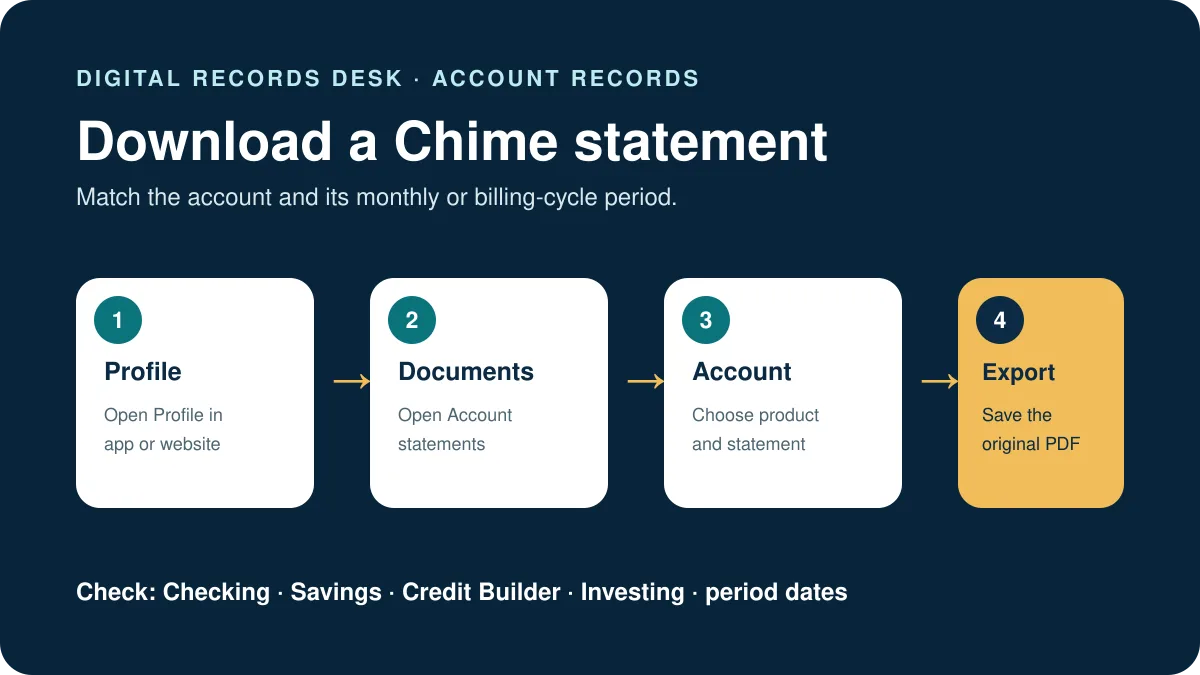
Chime statements can be viewed and downloaded in the app or at Chime.com. Checking and Savings statements are generated monthly, while Credit Builder statements follow the billing cycle. Select the account and month deliberately.
Download a statement in the Chime app
- Open Chime and tap Profile.
- Tap Documents → Account statements.
- Select Checking, Savings, Credit Builder, or another available account.
- Select the month or billing cycle.
- Tap the export icon and save the PDF privately.
Download at Chime.com
- Sign in through the official Chime website.
- Select Profile → Documents.
- Under Account Statements, choose the account and month.
- Select the statement and download it.
Choose the correct statement
| Account | Statement schedule | Check |
|---|---|---|
| Checking | Monthly | Transactions and closing date |
| Savings | Monthly | Correct Savings account |
| Credit Builder | Billing cycle | Cycle dates rather than calendar month |
| Investing | Monthly when available | Investing documents are product-specific |
Chime says Investing statements include automated and self-directed activity when the member uses both. Investing tax documents can appear separately under Documents.
A Chime statement is a fixed record, not the same as the live transaction list in the app. Transactions posted after the closing date belong to the next statement even if they were initiated earlier. When a recipient requests a calendar month, compare its requested dates with the statement’s actual opening and closing dates.
If a statement is missing
- Confirm the account and expected monthly or billing-cycle period.
- Check both app and website after updating the app or browser.
- Remember a newly opened account may not yet have completed a statement cycle.
- For Investing discrepancies, follow the product-specific support instructions.
- If you cannot access the app or website, use Chime’s official Member Services route to request statements.
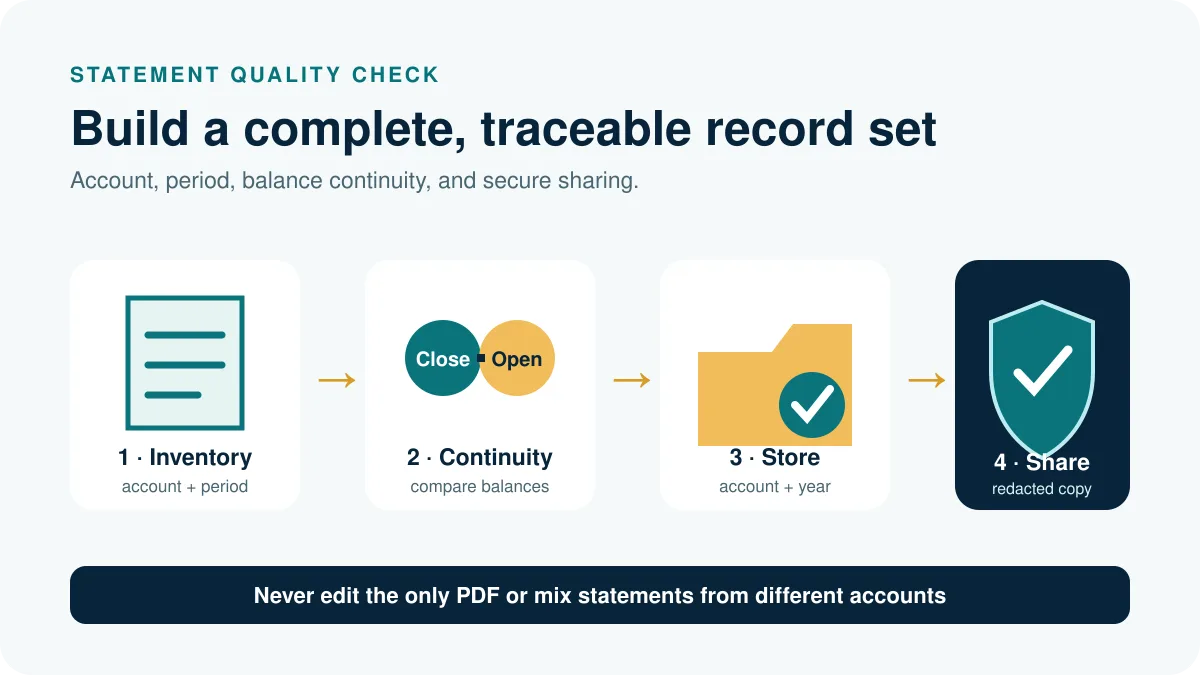
After downloading several months, label files consistently and compare each closing balance with the following statement’s opening balance. Keep Checking, Savings, Credit Builder, and Investing records in separate folders so a similarly dated document is not supplied for the wrong account.
Also verify that every downloaded PDF opens completely before relying on it or deleting an older local copy.
Build a complete Chime statement set
Create a simple inventory with account type, masked account number, statement period, opening balance, closing balance, and filename. Sort by the dates printed inside each PDF. Checking and Savings generally follow monthly periods, while Credit Builder follows its billing cycle, so filenames based only on calendar month can be misleading.
- Download each required account separately.
- Open every PDF and confirm its first page, last page, and statement dates.
- Compare the closing balance with the next statement’s opening balance.
- Check a sample deposit, card transaction, transfer, and fee against the app.
- Record any missing period before contacting Member Services.
A transaction initiated near the closing date may post on the next statement. Use the posted date and statement period when explaining a boundary difference rather than copying a pending transaction into the earlier PDF.
Choose records for a lender, accountant, or dispute
Ask whether the recipient needs a bank statement, Credit Builder statement, Investing statement, tax form, or transaction detail. Supplying every Chime document can expose more information without satisfying the request. For proof of funds, verify whether all pages are required and whether a recent live balance must accompany the latest completed statement.
For bookkeeping, preserve the monthly statement as the fixed source and annotate a separate reconciliation sheet. For a disputed transaction, retain the statement plus the in-app transaction detail and support correspondence. Never edit a PDF amount or date to make it agree with a working spreadsheet.
Name and protect downloaded files
Use filenames such as Chime-Checking-2026-07-original.pdf and store account types in separate folders. Redact only a duplicate intended for sharing. If the account is being closed, create the inventory and verify every file before access changes, then follow a retention period appropriate to your legal and financial needs.
When Member Services supplies a replacement statement, compare its account, dates, page count, and balances with the earlier copy. Keep the support reference and mark the superseded version clearly rather than deleting it. This makes the record understandable if the request is reviewed months later.
Frequently asked questions
Are Chime statements monthly?
Checking and Savings are monthly; Credit Builder follows its billing cycle.
Can I download statements on a computer?
Yes. Sign in at Chime.com, then use Profile, Documents and Account Statements.
Where are Investing statements?
In the app, open Profile, Documents, Account statements and Investing.
What if I cannot sign in?
Chime directs members who cannot access the app or website to official Member Services for statement copies.
Routes and schedules were checked on August 29, 2026.