Source workflow verified: August 29, 2026
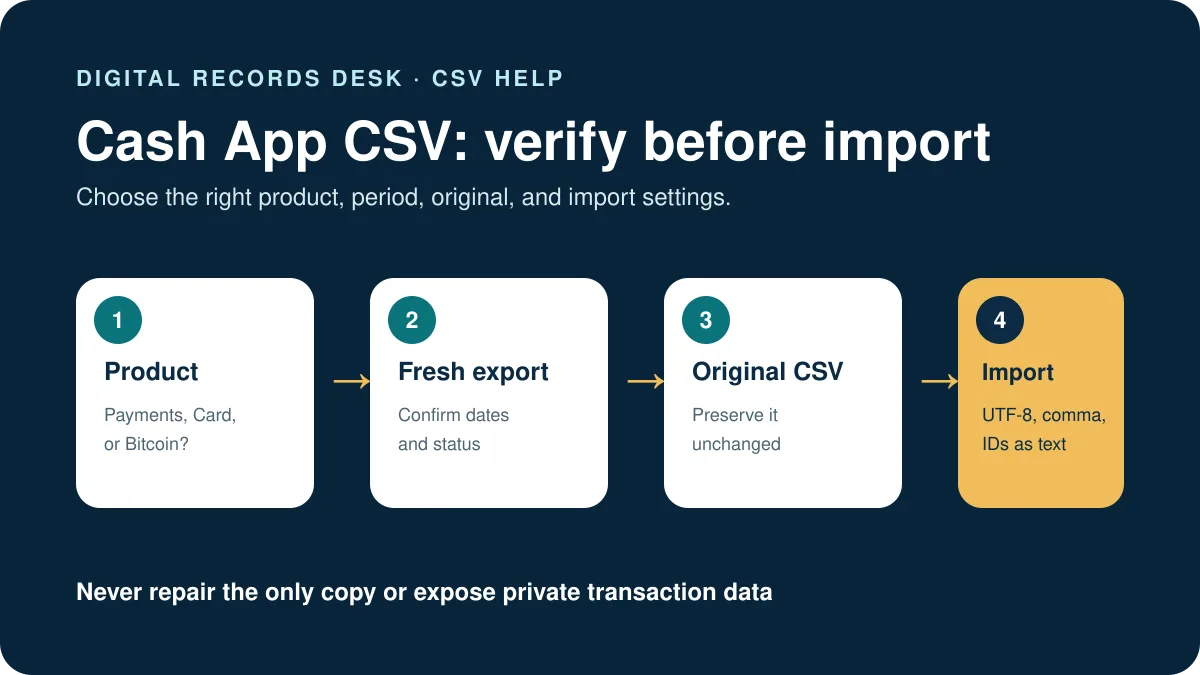
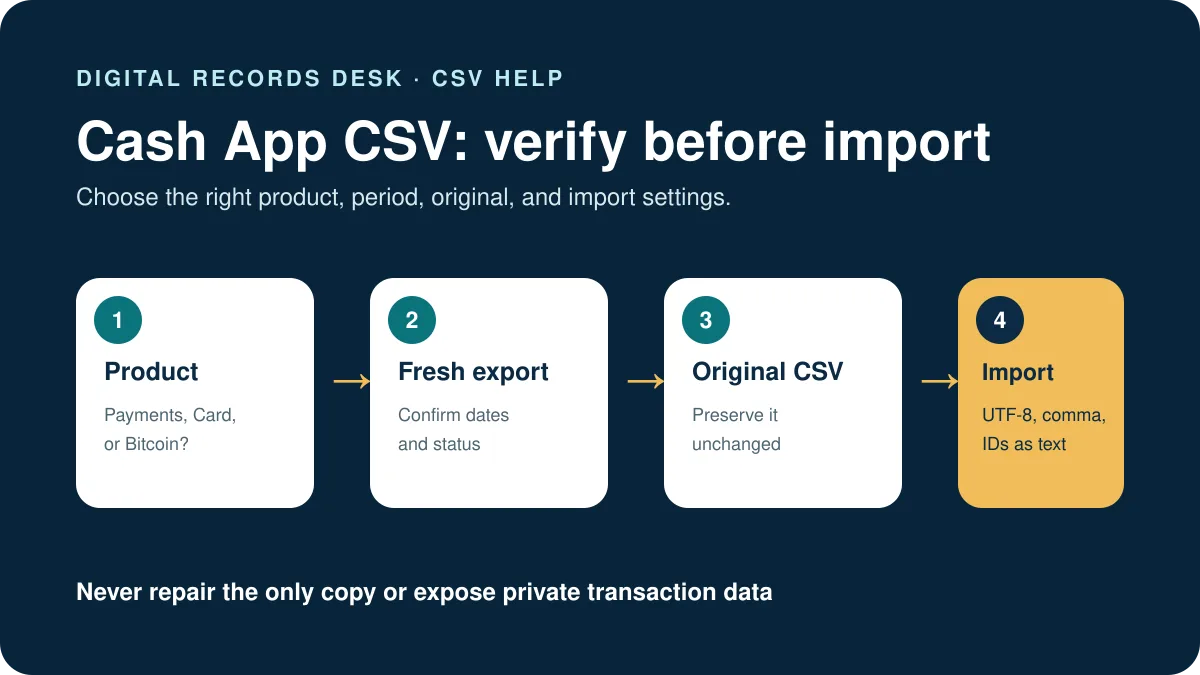
Cash App CSV files can represent personal-data history, supported Activity data, or Bitcoin transactions. A file can appear incorrect when the wrong product export was used or spreadsheet software changed delimiters, dates, identifiers, or decimal formatting.
Choose the correct Cash App CSV
| Export | Contains | Does not replace |
|---|---|---|
| Personal-data or history CSV | Available account data and history | Product-specific tax forms |
| Activity CSV | Supported activity view and filters | Every Cash App product automatically |
| Bitcoin transactions CSV | Bitcoin transaction records | Regular payments or card activity |
Review our Cash App transaction-history guide if you need to create a fresh export.
If everything opens in one column
- Duplicate the original file.
- Use the spreadsheet’s Import or From Text/CSV command.
- Select UTF-8 when asked for encoding.
- Select comma as the delimiter.
- Import transaction IDs and long numeric fields as text.
- Compare sample rows before saving.
If dates, amounts, or identifiers look wrong
- Check the spreadsheet locale and decimal separator.
- Do not convert long transaction IDs to scientific notation.
- Compare negative values, refunds and voids with the Activity screen.
- Verify timezone and boundary dates.
- Return to the original if headers or row alignment changed.
Automatic spreadsheet conversion can occur as soon as a file is opened. A long identifier may lose digits, a value such as 1.20 may be treated as a date, or a decimal point may be read as a thousands separator. Closing without saving and importing a fresh copy is safer than trying to reconstruct changed values.
If another service rejects the file
Confirm the service supports that exact Cash App export. Upload the untouched original first; resaving can change headers, encoding and quoting. Do not rename a PDF as CSV or delete unfamiliar columns merely to make validation pass. If mapping is required, follow the importer’s documented field definitions.
If the importer reports duplicates, compare its existing data range and transaction identifiers before deleting anything. The same transaction may already have arrived through a connected account. If totals differ, reconcile completed payments, refunds, fees, Bitcoin activity, and Cash App Card records as separate groups.
For troubleshooting, record the export date, product, selected period and importer error message without publishing the financial file itself. That information is usually enough for official support to identify a format mismatch.
Check whether the Cash App export is complete
Record the Cash App product, account identifier, export route, selected dates, timezone, row count, earliest date, latest date, and download time. Compare several transaction IDs and statuses with the Activity screen. A CSV can open perfectly yet still be the wrong product or period.
- Keep personal payments, Cash App Card activity, and Bitcoin records distinguishable.
- Check completed, refunded, reversed, failed, and pending activity separately.
- Review adjacent dates when the requested period begins or ends near midnight.
- Confirm whether another importer already pulled the same connected account.
- Use identifiers—not matching amounts alone—to investigate duplicates.
If the data request provides a broader history package rather than a report designed for accounting import, preserve its original folder structure and documentation. Do not assume every included CSV uses identical columns.
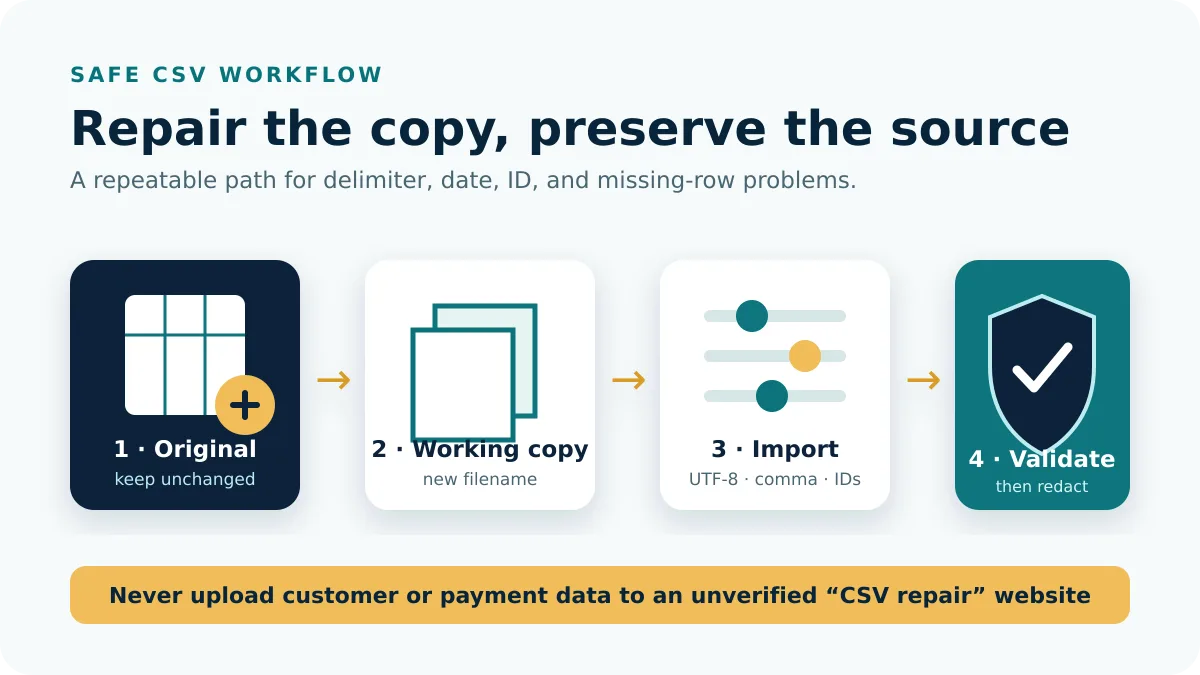
Create a controlled import copy
After validating the source, make a working copy and add transformation columns rather than replacing source values. Keep the original transaction ID, original date text, original amount, mapped category, and a note explaining any change. Save the importer’s required column map with the file.
When an importer rejects a row, isolate that row in a private test copy and compare quoting, blank values, date format, decimal format, and supported transaction types. Do not upload the entire account history merely to diagnose one formatting error. After import, compare row counts and control totals, then check a sample of refunds and Bitcoin transactions.
Recover from spreadsheet damage
If identifiers were rounded, dates changed, or columns shifted, close the workbook without overwriting the CSV. Re-import a fresh duplicate with explicit UTF-8, comma, and text settings. Reconstructing altered financial identifiers manually is unreliable. Keep the damaged copy only if it documents why a previous import failed.
Use descriptive filenames for source, working, import-ready, and imported versions. Record the software and import settings used, especially locale and timezone. That small audit note prevents a later user from treating a transformed file as the original Cash App export.
Frequently asked questions
Why is Cash App CSV in one column?
The spreadsheet missed the delimiter. Import as text/CSV and select comma.
Why are transactions missing?
Check the product, account, date range, filters and transaction status.
Does Bitcoin CSV include regular payments?
No. Collect the appropriate non-Bitcoin history separately.
Should I edit the original?
No. Keep it untouched and troubleshoot a duplicate.
Export scope was checked on August 29, 2026.