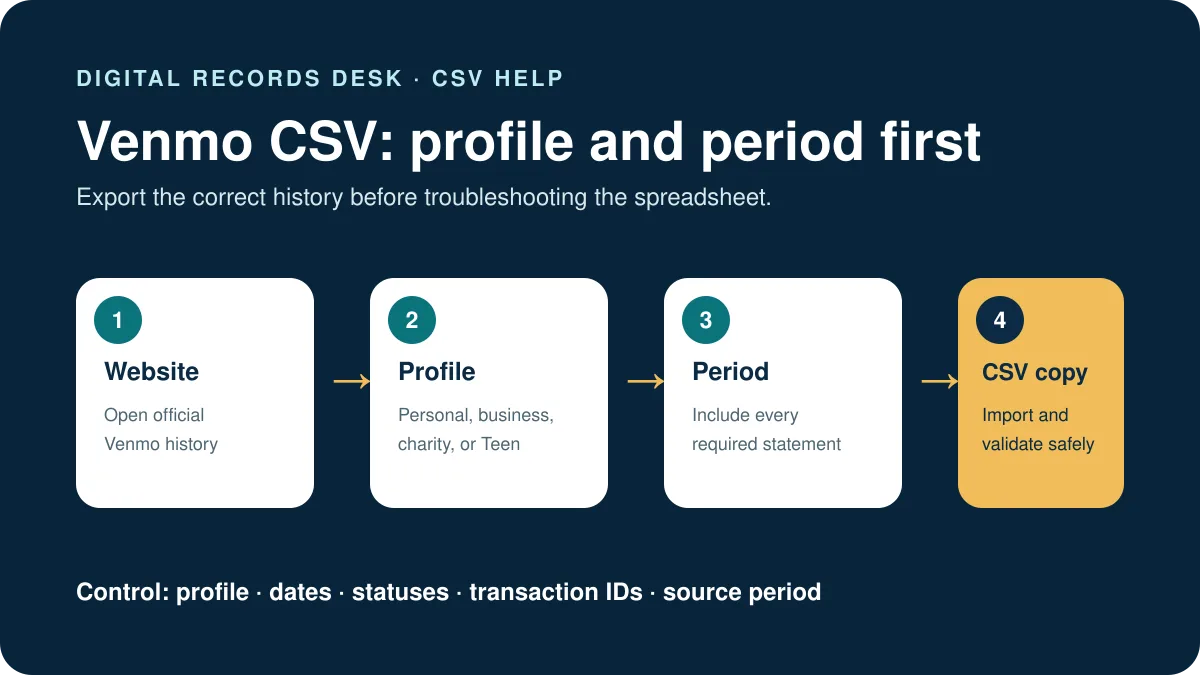
Source workflow verified: August 29, 2026
A Venmo CSV may look incomplete when the wrong personal, business, charity, or Teen profile was selected, the requested dates span several statement periods, or a spreadsheet interpreted the file incorrectly.
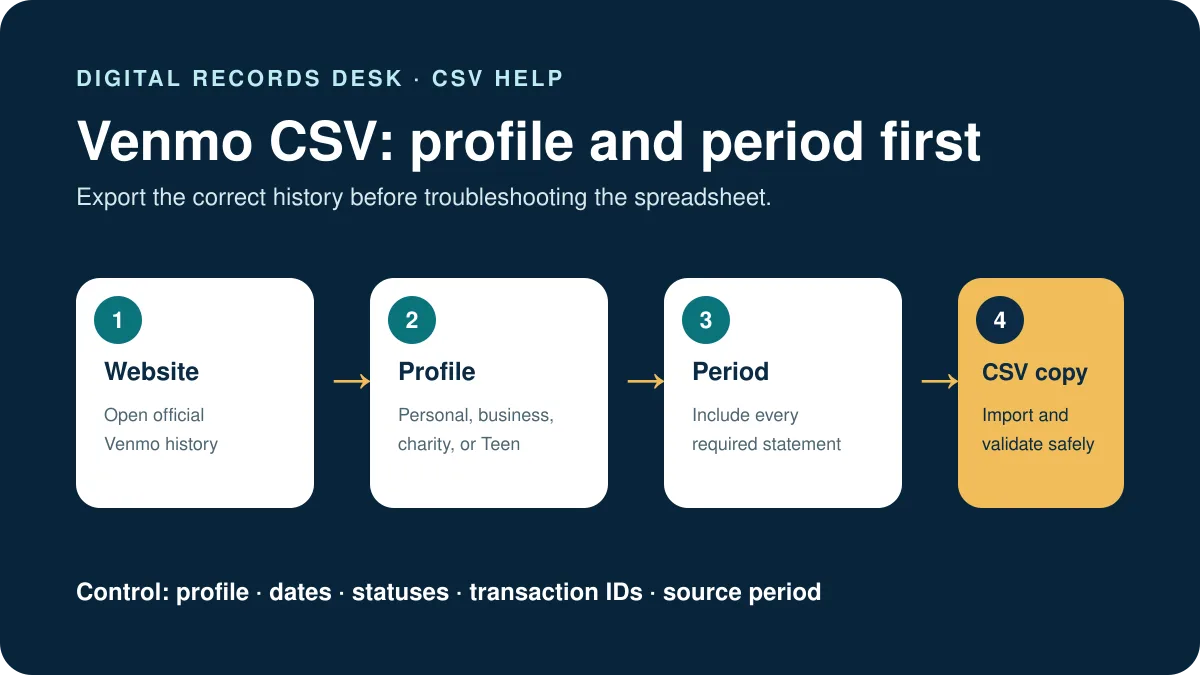
Create a clean Venmo export
- Sign in through the official Venmo website.
- Open the account-statement page.
- Select the correct profile.
- Choose the available period containing the requested dates.
- Download the CSV and label it with profile and period.
- Duplicate it before opening or editing.
See our full guide to download Venmo transaction history for the statement route and profile distinctions.
Fix columns, dates, and amounts
| Problem | Cause | Fix |
|---|---|---|
| One column | Delimiter not detected | Import as text/CSV with comma |
| Changed dates | Automatic locale formatting | Set locale or import as text |
| Changed IDs | Numeric conversion | Import identifiers as text |
| Wrong amounts | Decimal separator mismatch | Review locale and preview |
Find missing transactions
- Check whether activity belongs to another Venmo profile.
- Download adjacent statement periods when the request crosses a boundary.
- Compare pending, completed, refunded and reversed entries.
- Check the earliest and latest dates in the file.
- Use the on-screen transaction detail to verify sample rows.
If a payment was authorized near midnight or at the end of a month, examine the adjacent statement period and the timestamp shown in Venmo. A payment’s creation, completion, refund, and transfer dates can differ, so searching only one date may miss the related entry.
A safe repair workflow
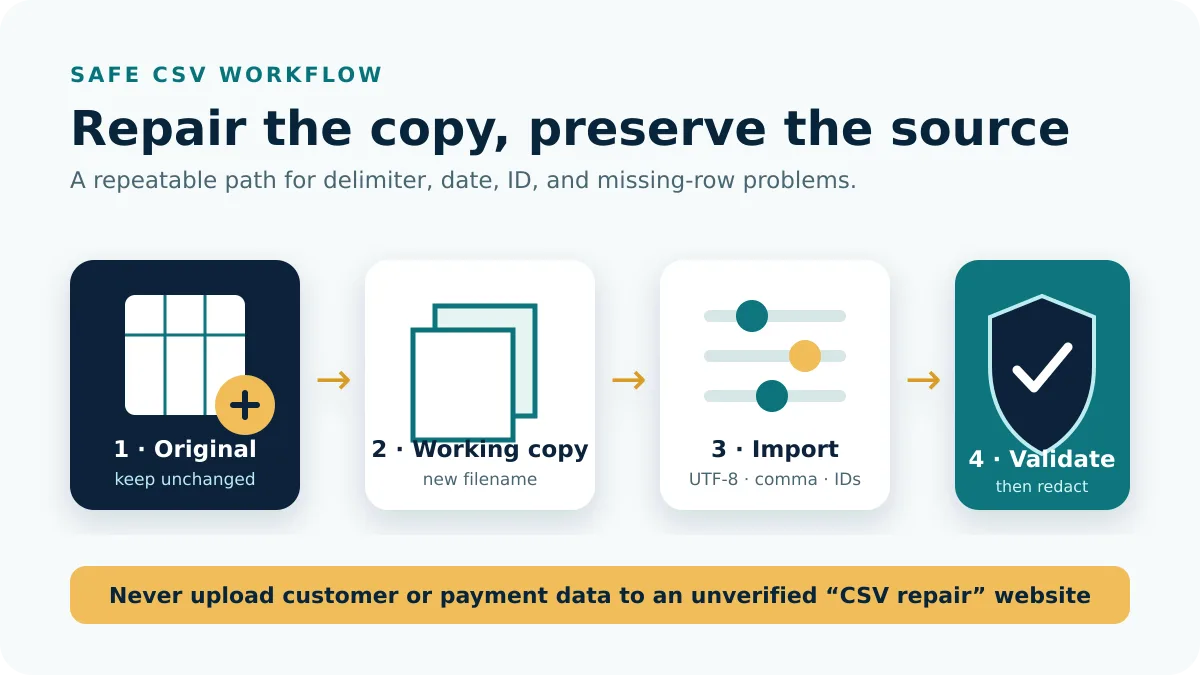
Keep the source file, create a working copy, document any filters, and reconcile totals before sharing. Avoid deleting rows that look duplicated until you match transaction identifiers and statuses; a payment and its reversal can be separate legitimate events.
When combining several statement periods, place each untouched CSV in a separate folder and combine only copies. Add a source-period column in the working file so every row remains traceable. Check for gaps and overlapping dates before calculating totals, and keep personal, business, charity, and Teen profiles separate until the purpose explicitly requires consolidation.
For an accountant, dispute, or records request, confirm whether the recipient needs the original CSV, a PDF statement, or a filtered spreadsheet. Sending the requested native format reduces conversion errors and unnecessary disclosure.
Map profiles and periods before combining files
Create an inventory with profile type, profile name, statement period, filename, row count, earliest transaction date, latest transaction date, and currency. This immediately reveals whether a personal file was downloaded in place of a business file or whether one period is missing.
| Check | Question | Action |
|---|---|---|
| Profile | Personal, business, charity, or Teen? | Export and label separately |
| Period | Does the request cross a statement boundary? | Collect adjacent periods |
| Status | Are refunds or reversals expected? | Retain related rows |
| Format | Does the recipient need CSV or PDF? | Send the native requested record |
Combine Venmo periods without creating duplicates
- Preserve every downloaded CSV unchanged.
- Import copies with explicit UTF-8, comma, date, and identifier settings.
- Add profile and source-period columns before appending rows.
- Check for gaps and overlapping boundary dates.
- Investigate duplicate identifiers and related reversal rows.
- Compare the combined row count with the sum of its source files.
Two rows with the same amount and counterparty are not automatically duplicates. Use transaction identifiers, timestamps, type, and status. A payment and its refund can be separate legitimate events that must remain visible for reconciliation.
When a fresh export still appears incomplete
Compare a small set of missing transaction IDs with the on-screen history, confirm the profile and period, and capture the exact export time and browser route. Contact official Venmo support without publishing or sending the unrestricted CSV through an insecure channel. A concise example is more useful than deleting or inserting rows to force totals.
Keep the original, corrected export, and support explanation together. For sharing, create a redacted copy containing only the required profile, period, and columns. Never alter the native source to hide private fields because that destroys the audit trail.
Before handing the file to accounting software, confirm whether transfers between your own Venmo profiles or bank accounts should be categorized separately. Preserve the original description and identifier so any classification can be reversed without downloading the history again.
Frequently asked questions
Why is Venmo CSV in one column?
Your spreadsheet did not detect commas. Use its CSV import workflow.
Why is business activity missing?
You may have exported the personal profile. Select the correct profile first.
Can one CSV cover several periods?
Availability depends on the statement selector. Download and label multiple periods when needed.
Can I remove refunded rows?
Not from the original. Reconcile payments and reversals by identifier and status.
Profile and statement guidance were checked on August 29, 2026.