Official documentation reviewed: September 7, 2026
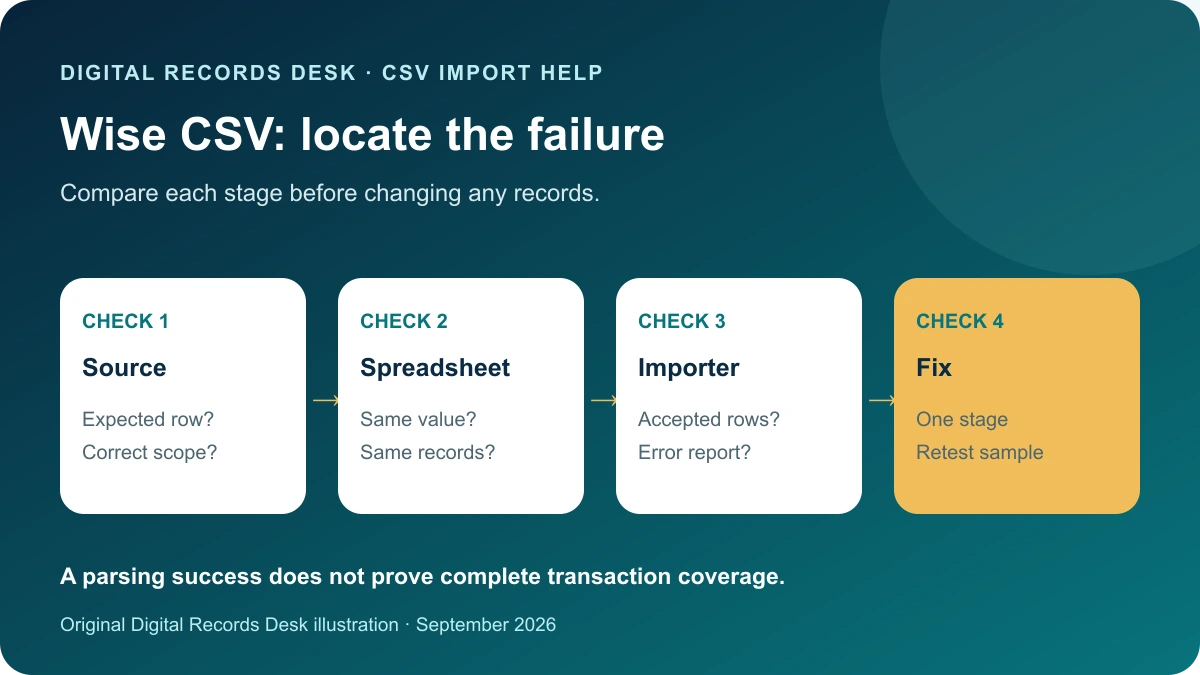
A Wise CSV can fail in two different places: the provider may have exported a narrower record set than you intended, or the spreadsheet may have interpreted the file incorrectly. Diagnose those separately. Editing cells before locating the failure can turn a recoverable import problem into an unreliable record.
Separate export scope from display errors
| Symptom | First comparison | Next action |
|---|---|---|
| All data in one column | Raw headers versus imported columns | Review delimiter selection |
| Expected activity absent | Chosen record and filters | Generate the correct scope |
| Amount looks much larger | Original decimal characters | Review numeric interpretation |
| Rows appear twice | Source-file membership | Check overlapping imports |
| Identifier has changed | Original text versus stored cell | Re-import as text |
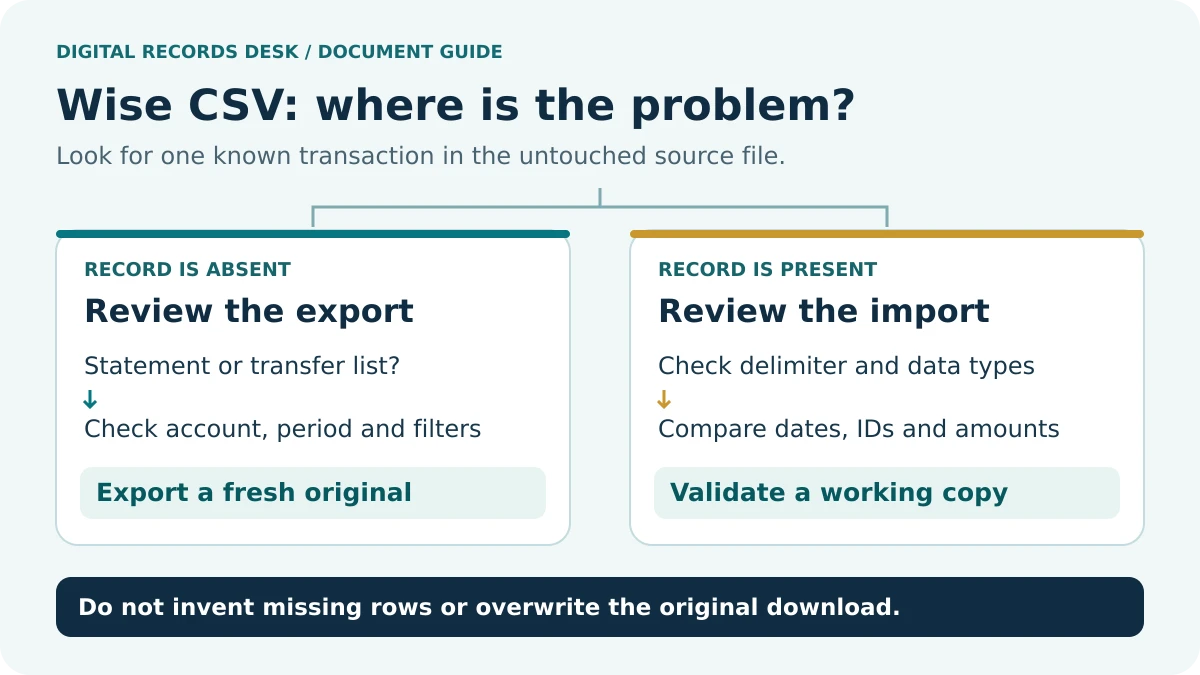
Wise distinguishes currency-account statements from transfer lists. That distinction matters when the activity you expected used an external payment method. Return to the official statement scope and the transfer-list filters before concluding that an export is broken.
Recover a clean baseline
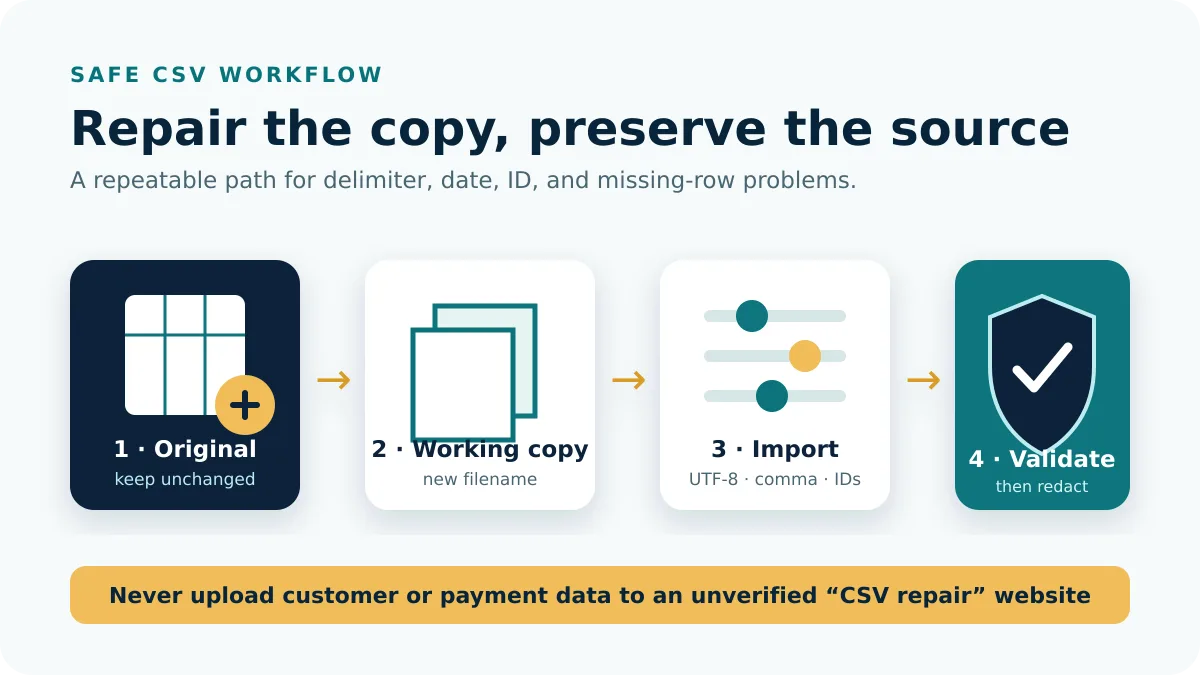
Make a folder containing the untouched download and a separate working copy. If you have already saved over the source, obtain a fresh export for the same scope. Record its currency, period and filter choices. Do not assume the latest file and an older file contain identical live activity simply because their filenames match.
- Find one specific row or field that demonstrates the problem.
- Inspect that value in a local plain-text viewer without editing it.
- Compare it with the spreadsheet’s stored value, not just its visual formatting.
- If it exists correctly in the original, focus on import settings.
- If it is absent from the original, investigate the selected report and account view.
- Write down the finding before changing anything.
Keep the test narrow. A single known reference and amount is easier to trace than an annual total that combines multiple currencies, fee treatments and overlapping files.
Import without silently changing values
In supported Excel versions, use Data → From Text/CSV and inspect the delimiter preview. Keep identifiers as text and review date and number types before loading. Microsoft explains that opening CSV directly uses default interpretation settings; its import tools provide greater control. Microsoft CSV import guidance.
Look for a clean separation of headers and values. Text descriptions may contain commas or quoted punctuation, so replacing every comma is not a safe repair. If characters look corrupted, inspect the import encoding rather than deleting the affected names. Preserve the full original file so you can restart.
An identifier displayed as scientific notation may merely be formatted differently, or it may already have lost precision. Compare the stored value with the original string. If digits or leading zeros changed, return to the source; guessing the missing characters cannot restore a reliable identifier.
Find the first point where rows disappear
Count records at each stage: downloaded source, imported worksheet and destination application. A text file’s physical line count is not always its transaction count because quoted fields can contain line breaks. Use a CSV-aware view for record counts, and account for the header. This is an original diagnostic method rather than a Wise-specific row guarantee.
Suppose an illustrative source has 120 transaction records, Excel has 120, and an accounting import accepts 118. That points to the last stage. Review rejected-row messages and the destination’s schema before downloading a different Wise report. If the source itself has only 118, compare scope and boundaries instead.
Remove worksheet filters in the working view before reporting missing rows. Then compare the date field used for grouping, the chosen currency and the exact period. Preserve pending explanations as notes rather than creating placeholder transactions in the accounting dataset.
Control joins and repeat imports
Add a source-filename column before combining monthly or currency files. A full-year export plus twelve monthly exports can duplicate the same records. Two genuine transactions can also share a date and amount, so those two fields alone do not establish duplication.
Compare available references, transaction type, currency and related details. Keep a review column stating why a row is included or excluded in the working result. Preserve related fee or conversion movements until you understand their role. Never delete source rows because they make a total inconvenient.
Before a full production import, validate a small supported test or preview in the destination software and check its duplicate-detection rules. Do not retry an entire import merely because the first screen looked unchanged; establish which records were accepted.
Prepare a useful support note
State the chosen export, date range, currency, spreadsheet or importer, exact symptom and the first stage where the mismatch appears. Use a fabricated sample to explain formatting in a public discussion. Send real references only through the provider’s authenticated support channel when necessary.
The private CSV diagnostic planner can turn the symptom into a checklist without receiving a file. Find other platform cases in CSV and Import Help, or review the record selection process in Transaction Histories. Keep your source, working copy and short change log until the discrepancy is resolved.
Frequently asked questions
Should I save over the CSV after fixing it?
Use a new filename. Preserve the exact provider download as the baseline for later comparisons.
Can I remove duplicate-looking amounts?
Matching amounts do not prove duplication. Trace references, currencies, transaction types and source files before excluding anything.
Does a successful import prove the data is complete?
No. Compare coverage, rejected rows and control samples; successful parsing only establishes that the software accepted something.
- Wise: statements and available formats
- Wise: download a transfer list
- Microsoft: import text and CSV files
Provider routes were checked against public documentation on September 7, 2026. Menu labels, available products and regional requirements can change. The examples and record-control checklists are original editorial guidance, not provider screenshots or a test inside your account.