Official documentation reviewed: September 7, 2026
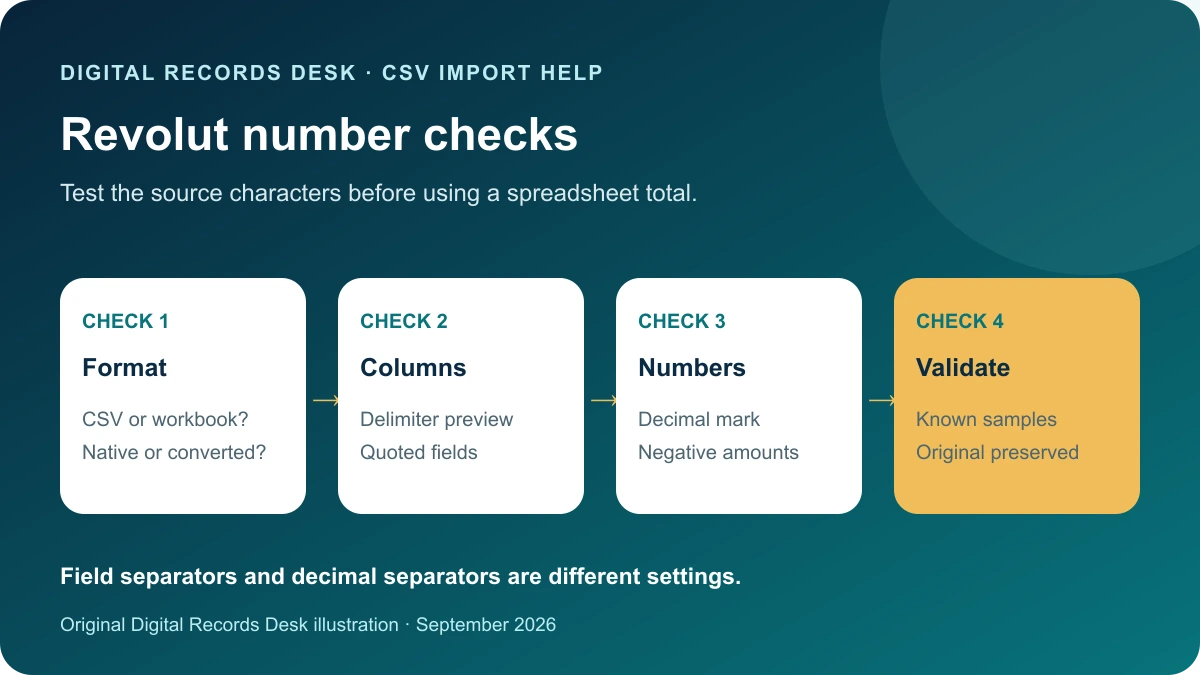
If a Revolut amount turns into a much larger number, a date changes meaning, or a whole row appears in one cell, stop before resaving the file. The first task is to distinguish a native CSV from an Excel workbook or a locally converted copy, then compare the original characters with the imported values.
Confirm what you actually downloaded
The UK Revolut Personal currency-statement route reviewed here lists PDF and Excel; the Business transaction-statement route lists PDF and CSV. Your country or product may differ. If you converted an Excel statement yourself, label it as a working conversion rather than a native export. Personal formats · Business formats.
| File you have | Appropriate starting point | Avoid |
|---|---|---|
| Native CSV | Text/CSV import preview | Uncontrolled automatic conversion |
| Excel workbook | Open as a workbook; inspect sheets | Renaming it to .csv |
| PDF statement | Readable document review | Treating extracted text as verified rows |
| Locally converted CSV | Compare with its source workbook | Discarding the original |
Diagnose one wrong number
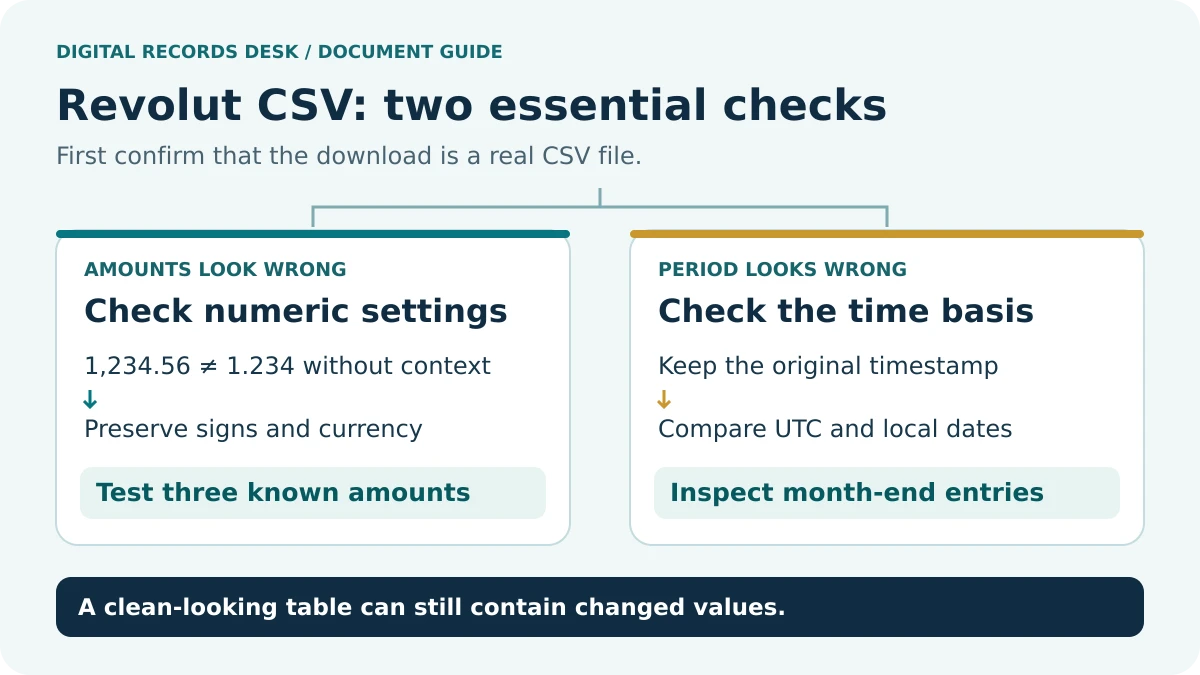
Choose an amount that you can independently recognize in the source. Record its exact characters, its currency and the spreadsheet’s stored value. Do the same for a negative amount and a value with fractional units. One positive round number is a weak test because several incorrect settings can still display it plausibly.
In a fictional file, the text 1,234.56 represents a different separator convention from 1.234,56. Neither convention should be assumed from your current location alone. The delimiter between fields and the decimal mark inside a number are separate choices. Quotation marks can also protect punctuation inside a field.
Microsoft’s Text Import Wizard provides explicit decimal and thousands separator controls, and its text/CSV import flow provides a delimiter preview. Use these controls for the working import rather than replacing punctuation across the source. Numeric separator controls · CSV import preview.
Use a controlled import sequence
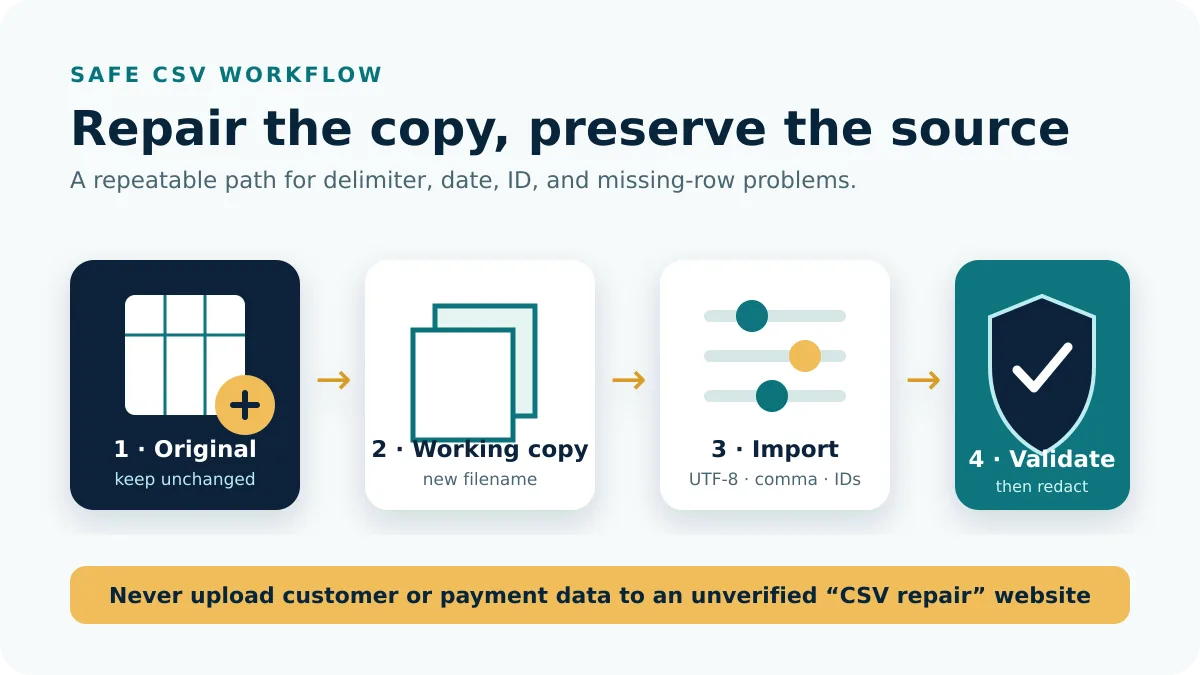
- Keep the original download and create a named working copy.
- Confirm its real format and identify the intended sheet if it is a workbook.
- Preview the column boundaries before committing an import.
- Keep references and identifiers as text; choose numeric and date interpretation deliberately.
- Compare a positive amount, a negative amount, a decimal value and a boundary date.
- Save the validated working result under a new filename.
If the preview is already wrong, cancel there. It is easier to adjust an import than to reverse a hundred silent changes after formulas and filters have been added. Preserve unusual descriptions and non-English characters; deleting them can remove the evidence needed to identify a transaction later.
Do not use a corrected grand total as the only validation. Two offsetting mistakes can cancel numerically. Trace a few representative rows and retain the original reference strings so the check is reproducible.
Keep dates, states and currencies distinct
Revolut’s Business documentation says statements default to UTC and CSV downloads can also include local timestamps configured in Appearance. Its Personal documentation describes pending, completed and reverted activity. These are reasons to inspect the fields supplied, not instructions to discard any particular state. Business time basis · Personal statement contents.
A date such as 04/05/2026 is ambiguous without a known convention. Compare it with an unambiguous date and the original account view before assigning month and day. Store the chosen convention in the working-file notes. Changing the display format after an incorrect import does not necessarily restore the original date.
Group by currency before comparing amounts. Keep transaction state visible while investigating balance differences. An available-balance screen and a selected export may answer different questions; forcing them to match by deleting rows creates an unexplained dataset.
Validate a converted workbook
If your destination requires CSV and your source is Excel, preserve the workbook and export only the intended sheet in a separate working step. Confirm that the sheet has one header row and the expected transaction fields. Record any transformations, including removed introductory rows, renamed columns or formula-to-value conversions.
Reopen the generated CSV through an import preview and compare the record count, identifiers and sample amounts with the workbook. Export can introduce a new delimiter or date representation even when the workbook looked correct. Keep the conversion note with the file so a later user knows how it was produced.
For a rejected accounting import, compare the destination’s official required columns and supported formats. A readable CSV is not automatically compatible with every importer. Review rejected-record messages before sending the entire file again, and establish which rows were already accepted.
Escalate with evidence
Summarize the product, country, file format, period, application and exact mismatch. Use invented sample values when discussing a format publicly. For account-specific missing activity, contact Revolut through its authenticated support route and retain the original download and response.
Our private CSV diagnostic planner helps organize the checks without receiving your file. The CSV and Import Help hub contains related examples, while Transaction Histories helps identify the correct source record before conversion.
Frequently asked questions
Should I change Windows regional settings?
Start with the import controls for the working file. A broad system change can affect unrelated applications and still leave an already damaged import unresolved.
Can I recover digits from a rounded identifier?
Return to the original string and re-import as text. A rounded or truncated stored value cannot reliably reveal the lost digits.
Why does the CSV look fine but the importer reject it?
Display and schema compatibility are separate checks. Read the destination’s format requirements and rejected-record details.
- Revolut Personal UK: currency account statements
- Revolut Business UK: transaction statements
- Microsoft: import text and CSV files
- Microsoft: Text Import Wizard and numeric separators
Provider routes were checked against public documentation on September 7, 2026. Menu labels, available products and regional requirements can change. The examples and record-control checklists are original editorial guidance, not provider screenshots or a test inside your account.