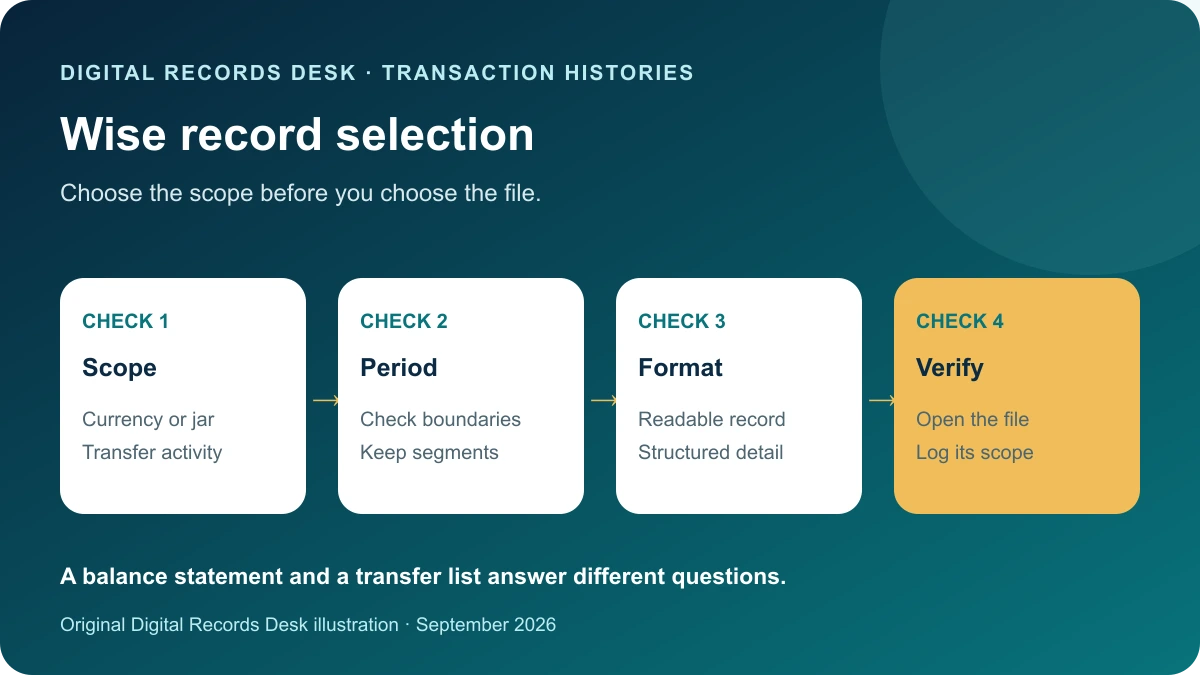
Official documentation reviewed: October 8, 2026
Wise offers two different downloads that are easy to confuse: a transaction history from the Transactions page and a statement for selected currencies or jars. Choose the record that matches what you actually need before downloading or sharing anything.
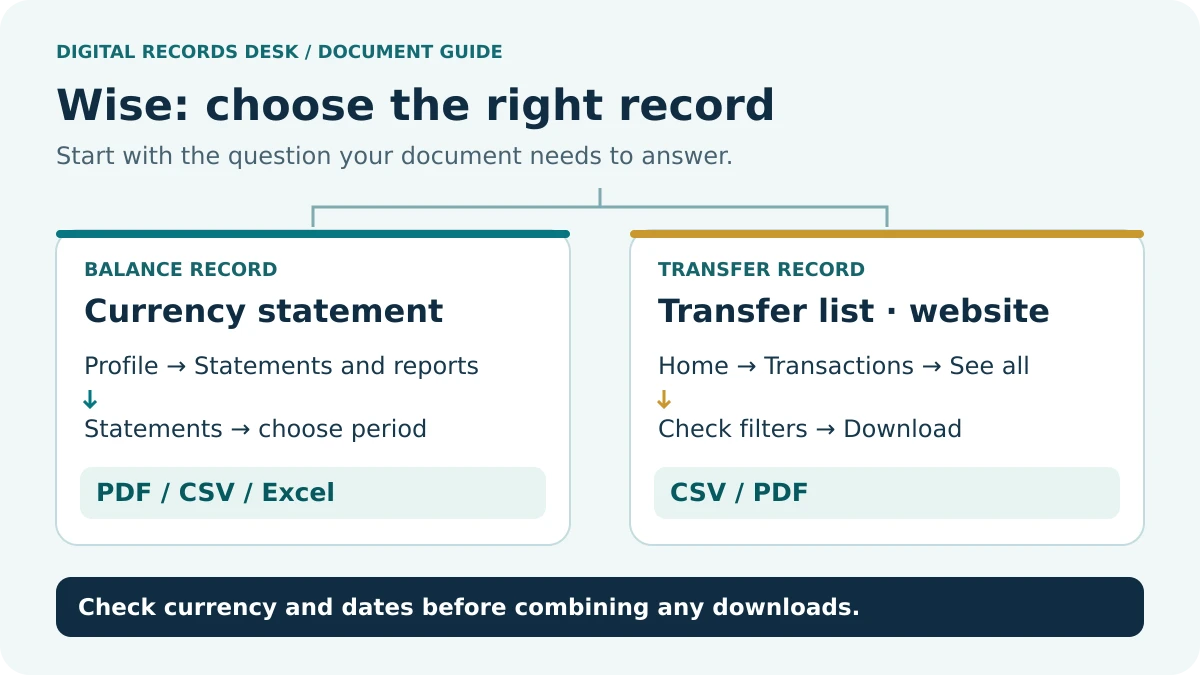
Wise transaction history vs. Wise statement
The first decision is whether you need activity from the Transactions page or a statement for one or more Wise currencies or jars.
| What you need | Wise record | Where to start |
|---|---|---|
| A list of transactions across your Wise activity | Transaction history | Transactions → Filters/search → Export |
| Activity for selected currencies or jars | Statement | Statements and reports → Statements |
| Structured data for a spreadsheet | CSV transaction history or statement | Choose the export that matches the records you need |
| A readable record | Available from both transaction-history and statement flows |
Wise states that currency and jar statements contain transactions made through Wise currency accounts. If you need broader activity, including transactions involving external payment methods, Wise directs users to the Transactions page instead.
This distinction matters when someone asks for your “Wise history.” A currency statement and an export of the Transactions page are different records and should not automatically be treated as interchangeable.
How to download your Wise transaction history
If you want a list of transactions rather than a statement tied to particular currencies or jars, use Wise on the web.
- Sign in to your Wise account on the Wise website.
- Open the Transactions tab.
- Select Filters at the top, or use the search bar.
- Choose the date range and any other filters relevant to your request.
- Select Export.
- Choose CSV or PDF.
- Save the original file and reopen it to confirm that the expected transactions and period are present.
Wise currently documents transaction-history downloads as a website-only feature. They are not currently available through the Wise mobile app.
The export follows your current Transactions view
This is one of the most important details to check. Wise says the export reflects your current view of the Transactions page.
Depending on your account and activity, Wise documents filters including:
- Date
- Recipient
- Transaction type
- Status
- Incoming or outgoing direction
- Currencies, jars and groups
- Card
- Category
- Currency routes
If you accidentally leave a filter active, the downloaded file may contain only part of the activity you expected. Before creating an archive or sending the file to someone else, check both the selected period and the active filters.
How much transaction history can you download at once?
Wise currently allows transaction-history downloads covering a period of up to 365 days at a time.
If you need a longer period, create consecutive exports. Check the beginning and ending dates of each segment rather than assuming that several downloaded files automatically provide continuous coverage.
How to download a Wise statement
A Wise statement is the better starting point when you specifically need records for selected Wise currencies or jars.
From the Wise home screen on the web:
- Select your initials in the top corner.
- Open Statements and reports.
- Select Statements.
- Choose Create a statement.
- Select the currencies or jars you need.
- Choose the required period.
- Select the file format.
- Download the statement. Wise may ask for your password to confirm the download.
You can also start from an individual currency or jar by opening it, selecting the three-dot menu, and choosing Statements and reports.
Wise statement formats
Wise currently lists the following statement formats on the website:
- XLSX
- CSV
- MT940
- QIF
- CAMT.053
In the Wise mobile app, statements can currently be downloaded as PDF, CSV or XLSX.
Wise statements can cover up to 365 days per statement. For longer periods, download multiple statements covering consecutive date ranges.
You can include multiple currencies and jars
Wise also allows multiple currencies and jars to be selected when creating statements. Depending on the size of the resulting files, Wise may provide the ZIP immediately or send an email with a download link.
Do not assume that selecting multiple currencies means the values should be combined into one total. EUR, GBP, USD and other currencies remain different units and should be reconciled separately unless you have a specific reason and documented exchange-rate method for converting them.
Check your downloaded Wise records
A successful download does not necessarily mean that you captured the records you intended to collect. Before relying on the file, check its scope.
A simple verification process is:
- Confirm the requested start and end dates.
- Check whether filters were active on the Transactions page.
- Confirm the currencies or jars included in a statement.
- Compare an early, middle and recent transaction with the Wise account view.
- Check an unusual item such as a refund, fee or reversal if one exists.
- Keep the original downloaded file before editing, sorting or combining the data.
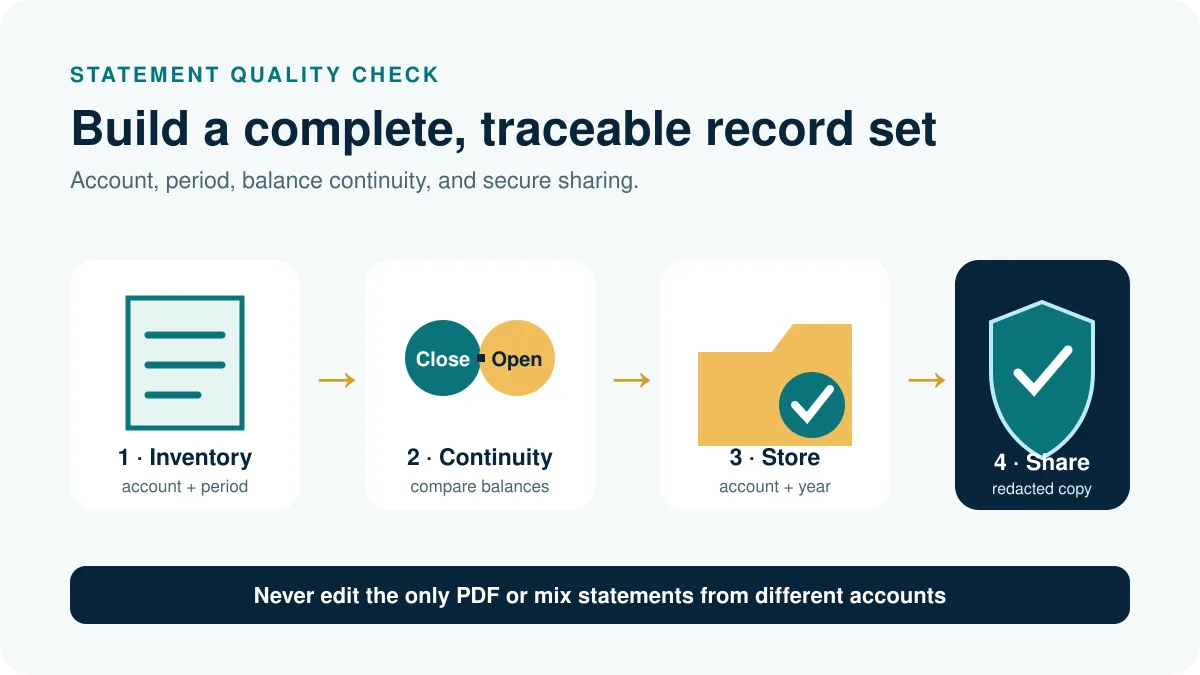
If you are building an archive from several downloads, create a small coverage list containing the record type, currency or scope, requested dates, actual dates covered and filename.
For example:
wise-transactions-2025-01-01-to-2025-12-31-original.csv
is easier to audit later than a filename such as download-final2.csv.
If the CSV appears incomplete
First determine whether the problem exists in the Wise export itself or only after opening the CSV in spreadsheet software.
Check the selected filters, date range and record type in Wise before editing the file. If the correct export has already been downloaded but rows, dates or amounts display incorrectly, use our Wise CSV not opening or missing transactions guide.
Keeping these tasks separate avoids trying to repair a spreadsheet when the real problem was an incomplete export scope.
Store and share Wise records without losing context
Keep the file originally generated by Wise even if you also create an edited spreadsheet for analysis or bookkeeping. The original gives you a reference point if you later need to check whether a value was changed during sorting, conversion or import.
If someone else requested the records, ask what they actually need before sending an entire account history. A request for information about one payment may not require disclosure of unrelated transactions.
Before sending a file, confirm:
- the requested period;
- the currencies or account scope;
- the required file format;
- whether a statement or transaction history was requested;
- the secure channel through which the recipient expects the record.
For guides covering other financial platforms and providers, see Transaction Histories & Statements.
Frequently asked questions
How do I download my Wise transaction history?
Sign in to Wise on the web, open Transactions, select Filters or use the search bar, choose the required scope and period, then select Export. Wise currently offers CSV and PDF for this export.
Can I download Wise transaction history from the app?
Not through the transaction-history export currently documented by Wise. Wise says transaction-history downloads are available on its website rather than the mobile app. Statements are different and can be downloaded from both the web and app.
Is a Wise statement the same as transaction history?
No. Statements are generated for selected currencies or jars, while transaction history comes from your Transactions view and can reflect broader activity. Choose the record according to the information you need.
Can I download Wise transactions as CSV?
Yes. Wise currently allows transaction history to be exported as CSV or PDF. Currency and jar statements can also be downloaded as CSV, with additional formats available.
How far back can I download Wise transaction history?
Wise currently allows up to 365 days in one transaction-history export. For a longer period, create several consecutive exports and check the boundaries between them.
Why are transactions missing from my Wise download?
Check the date range and active filters first. Wise transaction-history exports reflect the current Transactions view. Also confirm that you downloaded transaction history rather than a currency or jar statement, because the two records can cover different activity.
Should I use PDF or CSV?
PDF is usually more convenient when you need a readable record. CSV is generally more useful when you need to sort, reconcile or import transaction data. Keep the original download before modifying either format.
Provider routes were checked against Wise’s public documentation on October 8, 2026. Menu labels, available products and regional requirements can change. The record-control examples and verification steps on this page are original editorial guidance and are not a substitute for checking the current options inside your own Wise account.