
Source workflow verified: August 29, 2026
A Kraken CSV export that will not open, appears empty, or shows impossible amounts is often a spreadsheet-import problem rather than damaged account data. The safest fix is to keep the original file untouched, correct the import or locale settings, and reopen a fresh copy.
0.01 appear as 100, configure a decimal-period locale before importing. If the file is empty, generate a new export using dates that contain actual transaction activity.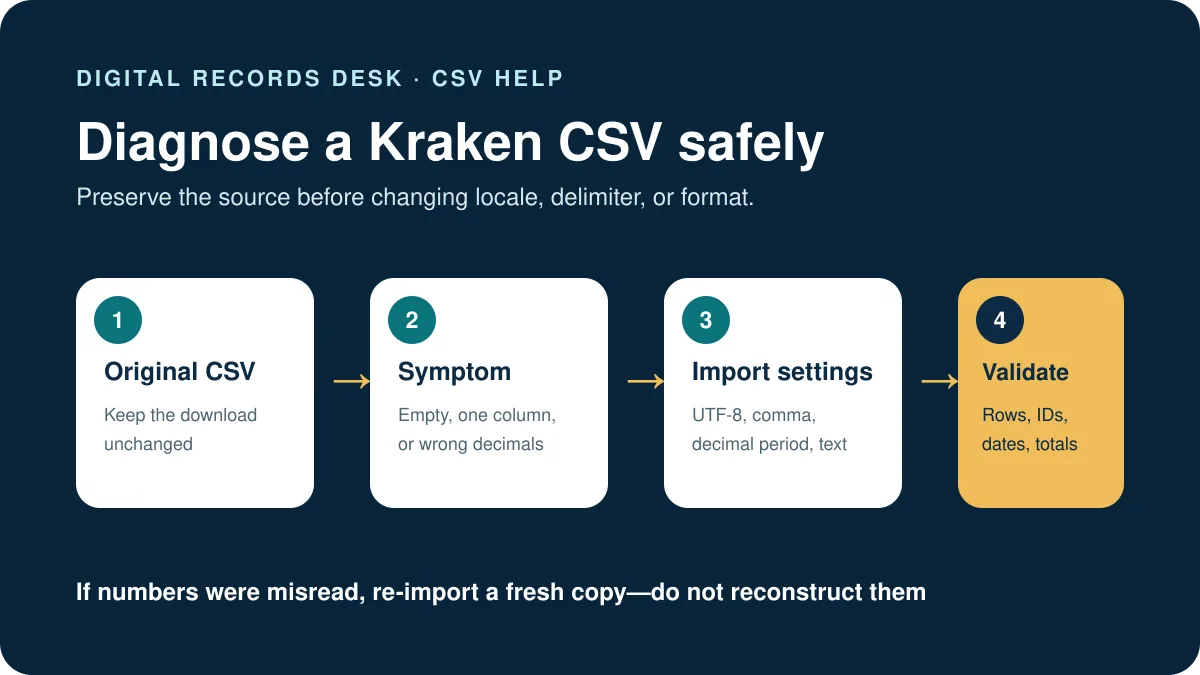
Identify the Kraken CSV problem before changing anything
| Symptom | Likely cause | Safest first action |
|---|---|---|
| The file will not open | Outdated application, incorrect file association, incomplete download, or unsupported opening method | Keep the original, update the application, and import a copy into another supported spreadsheet tool |
| All data appears in one column | The comma delimiter was not detected | Use the program’s CSV import function and choose comma as the delimiter |
| Small decimals become large numbers | The spreadsheet expects decimal commas while Kraken uses decimal points | Set a decimal-period locale before opening a newly downloaded copy |
| The export has headers but no rows | The selected period contained no matching transaction activity | Generate a new request with corrected transaction dates and fewer filters |
| Rows seem incomplete | Wrong export type or over-restrictive filters | Compare ledger and trade exports for the same wider period |
How to open a Kraken CSV correctly
Microsoft Excel
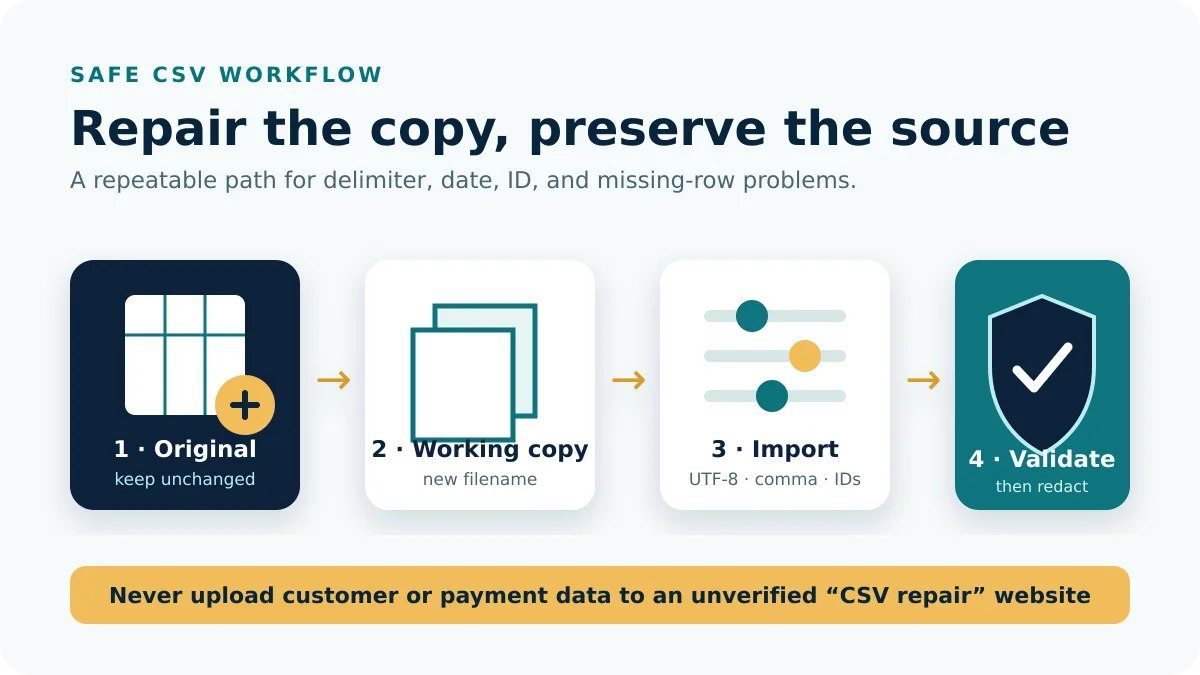
- Create a working copy of the downloaded Kraken CSV.
- Open a blank workbook instead of double-clicking the CSV.
- Use Excel’s data import command for a text or CSV file.
- Select UTF-8 when character encoding is requested and comma as the delimiter.
- Preview the date, amount, fee, asset, and identifier columns before loading.
- Import identifiers as text when Excel proposes scientific notation or removes leading characters.
- Compare several rows with the original before saving as XLSX.
Google Sheets
- Open a blank spreadsheet and confirm its locale before importing.
- Use File → Import → Upload and choose a copy of the Kraken CSV.
- Select comma as the separator if Sheets does not detect it automatically.
- Avoid converting long IDs or timestamps into rounded numbers.
- After review, keep the imported sheet separate from the original CSV.
Apple Numbers
Numbers is listed by Kraken as a supported spreadsheet application for viewing CSV exports. Open a duplicate, review delimiter and regional settings, and compare decimal values before using totals.
Fix Kraken CSV values that are 100 or 1,000 times too large
Kraken uses a period (.) as the decimal separator and a comma (,) as the thousands separator. Spreadsheet software configured for a decimal-comma country can interpret the same characters differently. Kraken gives the example that 0.01 may be displayed as 100.
Excel settings
Configure the decimal separator as a period and the thousands separator as a comma before importing the fresh file. Changing only a column’s visual number format after the values were misinterpreted does not necessarily restore the original numbers.
Google Sheets locale
Open File → Settings and choose a locale that uses decimal periods, such as the United States, Canada, the United Kingdom, Australia, or New Zealand. Then import a fresh copy of the CSV.
- Close the altered working file without overwriting the original.
- Correct the spreadsheet or locale settings.
- Download or duplicate a fresh Kraken export.
- Import it through the data-import workflow.
- Check a known small fee or amount against the Kraken account view.
Fix an empty or incomplete Kraken CSV
Use transaction dates, not a balance date
Kraken says an empty export commonly results from selecting dates with no activity or confusing a desired balance date with the date of transactions. Generate a new export whose start and end dates surround the transactions themselves.
Widen the date range
Include a small buffer around the expected dates when time-zone conversion might move an entry across midnight. After identifying the rows, make a filtered working copy.
Choose the correct export
Trades contain execution details; ledger history is broader and includes balance-changing activity such as deposits and withdrawals. Follow our complete Kraken transaction-history export guide when the file type is uncertain.
Remove optional filters
An asset, pair, or field filter can exclude the row you expected. Create one broad export to confirm that the data exists, then narrow subsequent copies.
Validate the corrected Kraken file
- Compare headers and row count with the untouched download.
- Check a known small decimal, a fee, a negative value, and a long identifier.
- Confirm that dates and timestamps use the intended locale and timezone.
- Recalculate control totals by asset and ledger type rather than relying on one grand total.
- If importing, review rejected rows and compare the accepted count with the source.
Keep the original CSV, corrected working copy, import-ready version, and import result under different filenames. Record the spreadsheet application, locale, decimal convention, and import settings so another person can reproduce the repair without guessing.
Do not “repair” a Kraken CSV by guessing
- Do not use find-and-replace on commas throughout the raw file.
- Do not manually remove rows that look duplicated until you understand their ledger type.
- Do not upload the file to random online converters; it contains financial activity.
- Do not treat spreadsheet totals as reliable until sample values match the account.
- Do not send a full CSV to unofficial support accounts.
Frequently asked questions
Why does Kraken use decimal points?
Kraken states that, as a U.S.-based company, its export files use periods for decimals. It currently does not offer account-history exports with decimal commas.
Why is my Kraken CSV in one column?
Your spreadsheet did not detect the comma separator. Import the file as CSV and explicitly choose comma as the delimiter.
Can I open a Kraken CSV in Google Sheets?
Yes. Kraken lists Google Sheets as a compatible application. Confirm a decimal-period locale before import when your usual locale uses decimal commas.
Should I convert the CSV to PDF?
Only when a readable copy is needed. Keep the original CSV for data processing and imports; converting to PDF removes the structured table behavior required by most software.
Supported applications, empty-file causes, decimal conventions, Excel settings, and Google Sheets locale guidance were checked on August 29, 2026.