Source workflow verified: August 29, 2026
A PayPal CSV may appear incomplete because the report covers the wrong dates, uses filters, is still processing, or opened with the wrong delimiter. PayPal’s Activity Download supports custom reports and several file formats, with special limits for large date ranges.
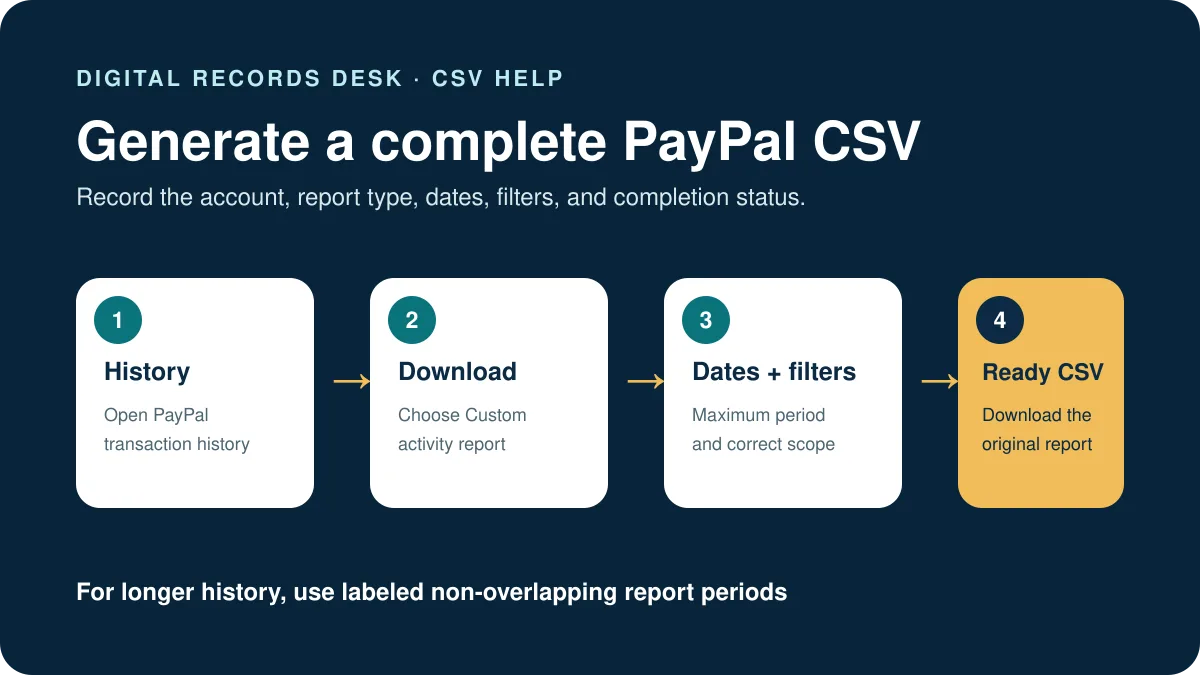
Create a fresh PayPal CSV
- Sign in through the official PayPal website.
- Open History and select Download.
- Choose Custom.
- Select the appropriate activity report.
- Set the start and end dates and review any filters.
- Choose CSV and generate the report.
- Wait until PayPal marks it ready, then download it.
PayPal says activity can be downloaded for up to seven years, but an individual request can cover a maximum of 12 months. If you need a longer history, create separate non-overlapping annual or shorter files and label each period.
For the complete workflow and alternative formats, see how to download PayPal transaction history.
If the CSV opens in one column or shows wrong numbers
| Symptom | Likely cause | Safe fix |
|---|---|---|
| All data in one column | Delimiter was not detected | Import as text/CSV and select comma |
| Dates changed | Automatic date formatting | Set the intended locale or import dates as text |
| Amounts look too large | Decimal/thousands separator mismatch | Check locale and preview before importing |
| Long IDs changed | Spreadsheet converted them to numbers | Import identifier columns as text |
| Headers or rows shifted | File was edited or converted | Return to the original download |
PayPal’s own guidance includes using spreadsheet filters to review report data. Apply filters after importing correctly, and avoid overwriting the source file.
If transactions are missing
- Check that the report’s first and last dates match the intended period.
- Confirm that the request covers no more than 12 months.
- Remove transaction-type or status filters and generate a broad comparison file.
- Check whether you are signed in to the correct personal or business account.
- Compare refunds, reversals, fees, holds, and currency conversions with the on-screen Activity view.
- Download adjacent periods when a boundary date may fall outside the selected range or timezone.
A PayPal tax form or Reconciliation Report is not the same as an Activity CSV. If you are checking Form 1099-K totals, use our guide to download and reconcile a PayPal 1099-K.
If the report is still processing
PayPal says small logs can be available immediately, while large logs may take up to five business days. Avoid submitting many identical requests. Check the report status and your recent downloads; PayPal says the last three large logs are saved.
If a completed file will not download, try the current browser version, permit the download for PayPal, confirm available storage, and use official PayPal support if the problem is account-specific.
Combine several PayPal report periods correctly
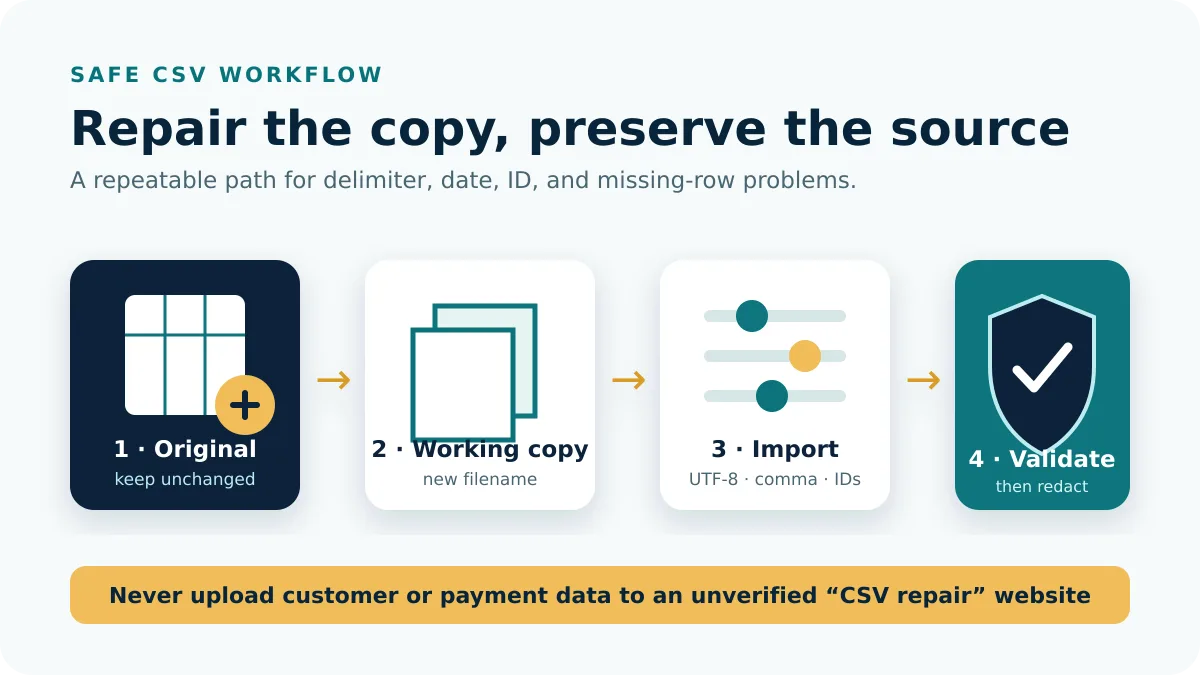
For more than 12 months, generate clearly labeled, non-overlapping reports. Record the account, start date, end date, timezone, report type, filters, row count, and completion date. Import copies and add a source-period column before appending them. Then check the earliest and latest timestamps, boundary dates, and combined row count.
Do not deduplicate using date, amount, or counterparty alone. PayPal may show an original payment, fee, currency conversion, hold, refund, or reversal as related but separate events. Use transaction and reference IDs plus status to determine relationships.
Validate the repaired or imported result
- Compare headers and row count with the untouched CSV.
- Check sample identifiers, dates, amounts, currencies, and statuses.
- Reconcile totals by transaction type rather than one grand total.
- Confirm that an existing bank connection did not already import the same period.
- Save the importer’s mapping and error report with the working copy.
If spreadsheet software has rounded IDs or changed dates, discard the damaged working copy and re-import a fresh duplicate with explicit settings. Manual reconstruction of financial identifiers is not reliable.
Store original, combined, import-ready, and successfully imported versions under different names. A short note containing the software, locale, timezone, and mapping settings makes the workflow reproducible.
Frequently asked questions
How much PayPal history can one report include?
PayPal says activity is available for up to seven years, with a maximum 12-month date range per request.
Why is my PayPal report taking so long?
Large logs can take up to five business days. Monitor the existing request rather than generating repeated duplicates.
Can PayPal export directly to Excel?
PayPal provides CSV and other formats. Import CSV into Excel and verify delimiter, dates, and decimal settings before saving as XLSX.
Why are refunded transactions still visible?
A report may show the original payment and its later refund or reversal as separate account events. Reconcile their identifiers and statuses instead of deleting one row.
Formats, date limits, processing times, and workflow were checked on August 29, 2026.